For many small businesses, the website is one of those things that quietly gets on with its job.
It brings in enquiries, takes bookings, sells products or simply reassures potential customers that you’re a genuine business. Because it’s working, security can easily slip down the list of priorities.
The trouble is, cybercriminals don’t only target large companies. Automated bots constantly scan WordPress websites looking for known vulnerabilities and easy ways in.
You don’t need to become a cybersecurity expert, though. These seven checks will give you a good idea whether your WordPress website needs a bit more attention.
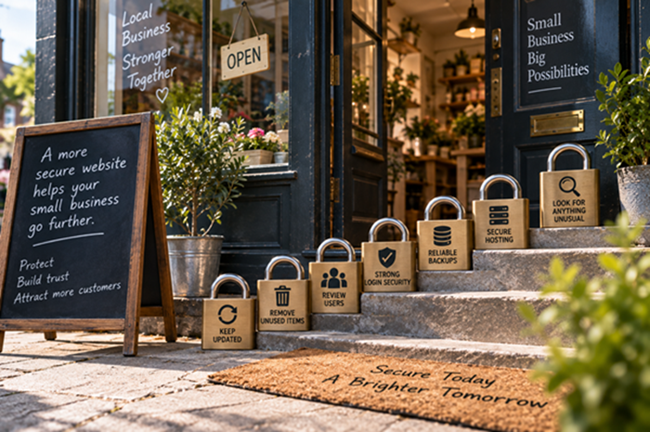
1. Check WordPress, plugins and themes are up to date
Start with your WordPress dashboard.
Updates aren’t just about new features. Developers also release updates to fix bugs and security vulnerabilities.
Pay particular attention to plugins. If a vulnerability becomes publicly known, attackers can start searching for websites still running the affected version.
Don’t blindly update an important business website without a backup, but don’t leave updates sitting there indefinitely either.
And if a plugin hasn’t received an update from its developer for years, ask whether it should still be on your website.
2. Remove plugins and themes you don't use
WordPress websites tend to accumulate software.
A previous developer installed one plugin, somebody else tried another, and before you know it there are 25 plugins installed but only 15 actually doing anything.
Unused software isn’t necessarily harmless. It still needs maintaining and can potentially introduce vulnerabilities.
The same applies to themes. You don’t need six old themes sitting around just in case you fancy going back to the website design you had in 2019.
Keep what you genuinely need and remove the rest.
3. Review your WordPress users
Go to Users in your dashboard and look at everyone with access.
Do you recognise them all?
Small business websites often retain accounts belonging to former employees, freelancers, developers or marketing agencies.
Pay particular attention to Administrator accounts because they have extensive control over WordPress.
People should only have the level of access required to do their job. If somebody only writes blog posts, for example, they probably don’t need administrator privileges.
Remove accounts that are no longer required.
4. Strengthen your login security
Every administrator should have a strong, unique password that isn’t being reused elsewhere.
Two-factor authentication is also worth enabling. This means a password alone isn’t enough to access the account.
It’s a relatively small inconvenience for an administrator but can make life considerably more difficult for someone using stolen login credentials.
And if your administrator username is still simply admin, I’d change that as well.
5. Check your backups properly
Ask yourself three questions:
How often is the website backed up? Where are those backups stored? Have we tested whether they can be restored?
The last question is particularly important.
Seeing the word “Backup” somewhere in your hosting account doesn’t necessarily mean you’ve got a reliable recovery plan.
Ideally, maintain copies away from the website’s main hosting environment. If the hosting account itself becomes compromised, you don’t want your live website and only backup affected at the same time.
6. Check your hosting and firewall protection
WordPress security doesn’t stop at the dashboard.
Your hosting environment, PHP version, SSL certificate, file permissions and hosting account security all matter.
Check that your website is using a supported PHP version and that your hosting control panel is properly protected.
Firewall protection is also useful for many small business websites. A website firewall can help identify and block malicious requests, automated attacks and attempts to exploit known vulnerabilities.
It isn’t a replacement for updates, good passwords and backups. Think of it as another layer of protection.
7. Look for anything unusual
Finally, pay attention to what your website is doing.
Unexpected administrator accounts, strange new pages, unexplained redirects, large numbers of failed login attempts or sudden changes in website traffic can all justify investigation.
Search engines showing pages you never created is another warning sign.
Security monitoring tools can help because a compromised website doesn’t always announce the fact with a big red “You’ve been hacked” message.
Sometimes everything looks perfectly normal from the homepage.
Make security a routine rather than an emergency
None of these checks is particularly exotic, and that’s really the point.
Good WordPress security isn’t about installing one clever plugin and hoping for the best. It’s about maintaining several sensible layers of protection and checking them regularly.
If your website brings customers into your business, treat it like any other important business system.
Give it a proper security check every so often rather than waiting until something goes wrong.
Gtec Media provides WordPress website hardening and security support for small businesses, reviewing existing WordPress installations, identifying weaknesses and putting practical security measures in place.
Because discovering a security problem during a routine check is considerably better than having a customer discover it for you.