If your WordPress website is working properly, taking orders, generating enquiries and generally doing what it should, it is easy to assume everything is fine.
Unfortunately, a website can appear perfectly normal while still having security weaknesses in the background.
WordPress itself is a mature platform, but a typical website also relies on plugins, themes, hosting, administrator accounts and third-party services. Each one adds another potential route into the site if it isn’t properly maintained.
So, how can you tell whether your WordPress website is reasonably secure?
1. Check when WordPress was last updated
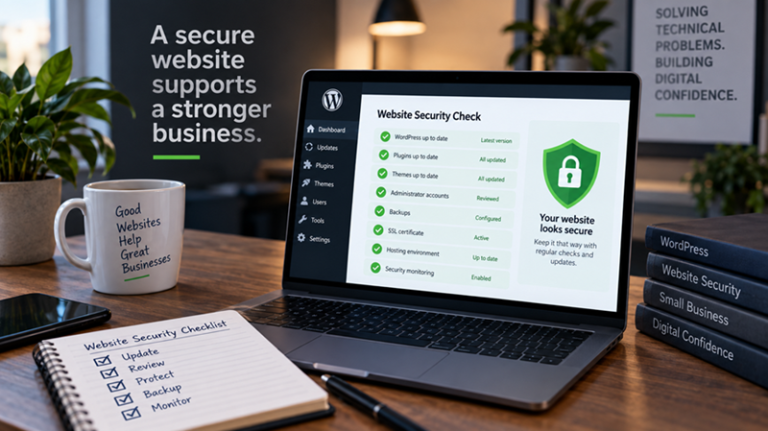
Start with the basics. Log in to your WordPress dashboard and check whether WordPress itself is running the latest stable version.
You should also look at your plugins and themes. Updates aren’t only about adding new features or fixing annoying bugs. They can also contain security fixes for vulnerabilities discovered since the previous version was released.
If your dashboard is showing a long list of outstanding updates, that’s worth dealing with.
But don’t just blindly click Update All on an important business website. Take a backup first and, ideally, test significant updates before applying them to a live site.
2. Look at what is actually installed
Over the years, WordPress websites have a habit of accumulating plugins.
Perhaps somebody installed a contact-form plugin that was later replaced. A previous developer might have added a tool for a particular job, or there may be three plugins doing roughly the same thing.
If you’re not using something, ask whether it needs to be there.
Every unnecessary plugin is another piece of software that needs maintaining. An old, abandoned plugin can become a security risk, particularly if vulnerabilities are discovered and the developer is no longer releasing updates.
The same principle applies to unused themes.
3. Check your administrator accounts
Go to Users in WordPress and have a proper look at who has access.
You may be surprised.
Old employees, previous web developers and agencies can sometimes retain administrator accounts long after they stopped working with a business.
Administrator access should only be given to people who genuinely need it. Everyone should have their own account rather than sharing one username and password.
Strong, unique passwords are essential, and two-factor authentication adds another useful layer of protection.
4. Make sure you have proper backups
Having a backup plugin installed isn’t quite the same as having a reliable backup system.
Ask yourself three questions:
How often is the website backed up? Where are those backups stored? Could the website actually be restored from them?
Ideally, backups shouldn’t exist solely on the same hosting account as the website. If the hosting account itself is compromised or damaged, you don’t want your website and your only backup disappearing together.
And every now and then, make sure those backups actually work.
Finding out that your backup has been failing for six months is best avoided.
5. Check the hosting environment
WordPress security doesn’t stop at WordPress.
Your hosting account, PHP version, SSL certificate, database and server configuration all play a part.
An old version of PHP, for example, may no longer receive security support. Your hosting control panel should also be protected with a strong password and two-factor authentication where available.
A good host will take care of some server-level security, but that doesn’t remove the need to secure the website itself.
6. Look for signs of suspicious activity
Security monitoring can help identify things you wouldn’t normally see while browsing your own website.
Repeated failed login attempts, unexpected administrator accounts, modified files, unfamiliar redirects and sudden changes in website traffic can all justify further investigation.
You might also notice your website becoming unusually slow, strange pages appearing in Google, emails being sent that you didn’t create, or visitors being redirected somewhere they shouldn’t be.
None of these automatically proves that a website has been hacked, but they shouldn’t be ignored.
7. Don't rely on a security plugin alone
Installing a security plugin can certainly help, but it isn’t a magic shield.
Proper WordPress hardening is about layers: keeping software updated, controlling administrator access, protecting login areas, maintaining backups, securing the hosting environment and monitoring the website for suspicious behaviour.
The aim isn’t to make a website completely impossible to attack. No responsible provider can promise that.
The aim is to remove unnecessary weaknesses, make common attacks harder and put sensible measures in place so problems can be identified and dealt with quickly.
When did you last check your website?
If the answer is “I’m not really sure”, that’s probably a good reason to have a look.
A WordPress website can sit quietly in the background of a business for years. But if it suddenly stops taking orders, generating enquiries or sending contact forms, it quickly becomes everyone’s problem.
A bit of preventative maintenance is usually far less painful than trying to recover a compromised website after the event.
Gtec Media provides WordPress website hardening and security support for businesses, including reviewing existing installations, identifying weaknesses and putting practical security measures in place.
The important thing is not to assume your website is secure simply because nothing appears to be wrong.